2026-09-03
Have you tried turning it off and on again?
My upload speed dropped to almost nothing while download stayed fine. I spent a day checking Wi-Fi security, router settings, background apps, and even called my ISP to schedule a technician. Every single thing I checked turned out to be fine. The actual cause: my MacBook had been running for 161 days straight without a reboot.
The Great Upload Speed Mystery
I have a new Macbook air (M5 2026) and yesterday I had network issues I could not explain.
If you're on a M5 Macbook air, and you're experiencing funny (dead) upload speeds and you did not reboot it for 5 months, this is for you.
TL;DR
My upload speed dropped to basically 0 Mbps while download stayed fine. In one day I:
- Fixed a weak Wi-Fi security setting (WPA to WPA2). Didn't help.
- Ruled out background apps, Docker, and Claude Code sessions eating bandwidth.
- Tested on a phone hotspot, a tablet, a phone, and a second Mac to isolate the cause.
- Called my ISP (Telenet). They scheduled a technician visit.
- Checked every setting in my modem and router: QoS, NAT, firewall, DHCP, bridging. All fine.
- Considered a network loop, a rogue device, and a corporate VPN agent.
- Found that the problem followed one specific MacBook M5, even on completely different networks (cellular hotspot, then Starlink).
The fix: I rebooted the Mac. That's it. Every other piece of infrastructure I checked was fine.
Something's wrong with my upload speed
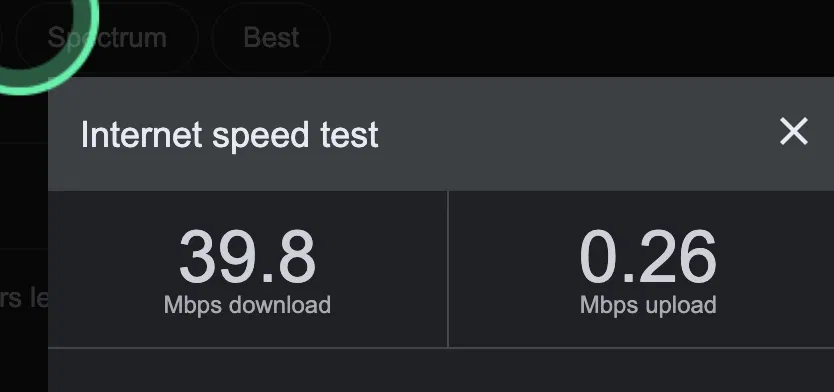
A routine speed test showed a healthy download and an upload crawling along at a fraction of a megabit.
Final numbers: 39.8 Mbps down, 0.26 Mbps up. That's roughly 1/150th of the download speed. Clearly broken.
The weak security setting
macOS showed a "Weak Security" warning on the Wi-Fi network. It said the network was still using the old WPA standard instead of WPA2 or WPA3.
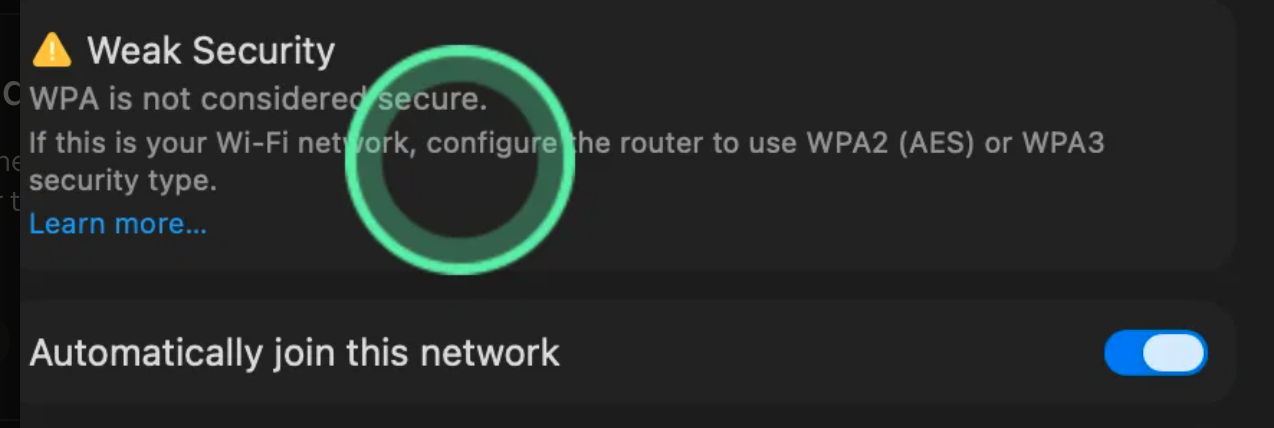
On the router, the security version was set to "Automatic," which let it fall back to the older, weaker standard.

Ran the test again. Still capped.
Forget this network
A saved Wi-Fi connection on macOS can keep using its old handshake even after the router settings change. The fix: "Forget This Network," reboot the router, then rejoin.
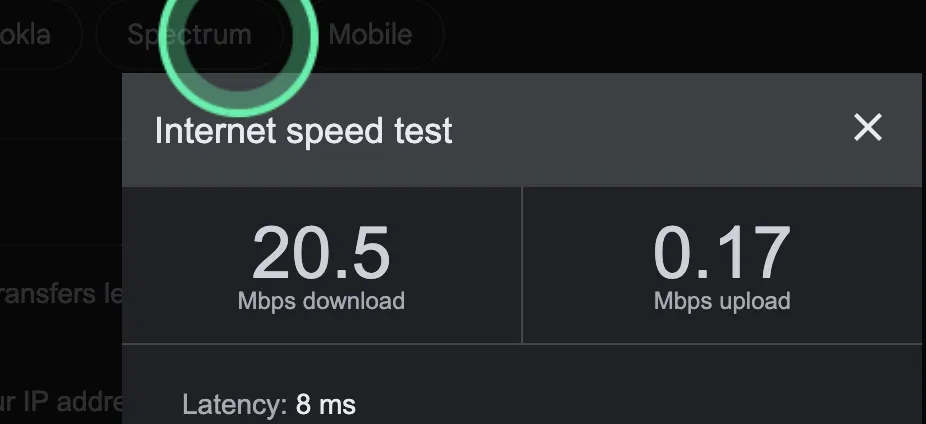
This time the warning was gone. But:
Checking the Wi-Fi signal
Next I checked the actual radio link, signal strength and negotiated speed, not just the security setting.
Cool little nugget of knowledge: you can OPTION click the wifi icon and see network debugging information. Never even knew this.
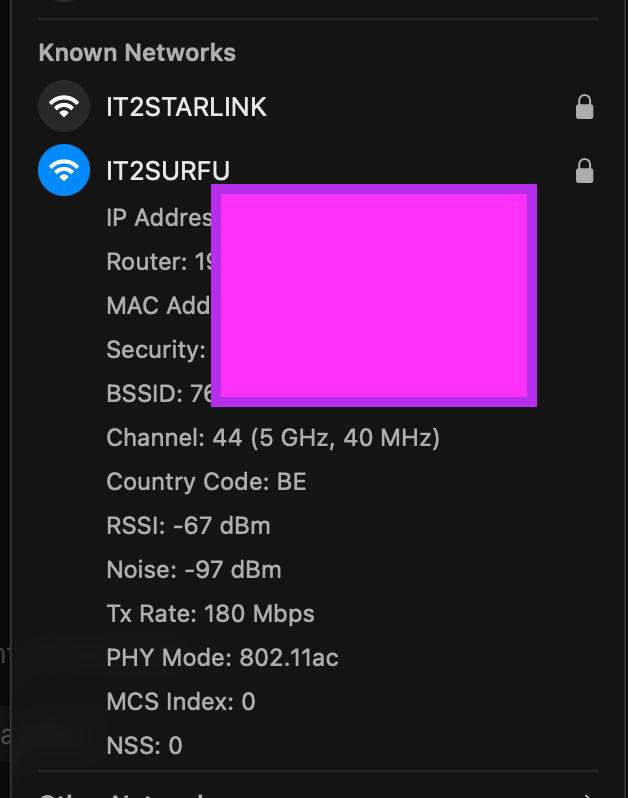
RSSI of -54 dBm is a strong signal. 130 Mbps transmit rate is far more than enough for a 40 Mbps connection. The Wi-Fi link itself was fine.
Checking for background uploads
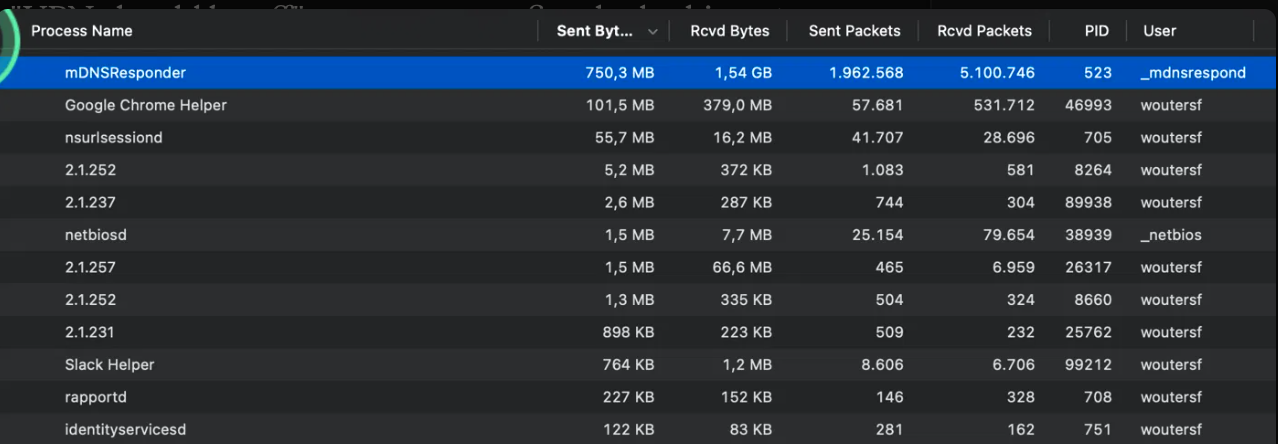
Next suspect: an app quietly using the upload bandwidth, a cloud backup, a sync client, something like that.
The hotspot test
If it wasn't Wi-Fi signal, security, or a background app, was it even a Wi-Fi problem? I connected the Mac to my iPhone's hotspot instead of home Wi-Fi.
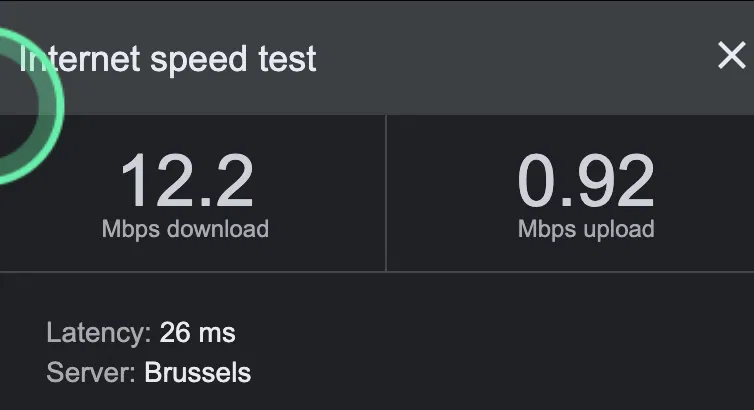
0.92 Mbps upload, better than home Wi-Fi (0.17 to 0.26), but still not great. This meant the Mac wasn't hard-capped everywhere, which pointed suspicion back at the home network.
Checking for malware
At some point you start checking if your Mac is compromised. I looked through Activity Monitor's CPU tab, login items, network extensions, and sharing settings. Nothing unusual. No unexpected processes, no unexpected sharing services enabled. I moved on.
Testing every device
The numbers kept changing test to test: 0.52, 0.26, 0.17, 0.92, then back down to 0.09 Mbps.
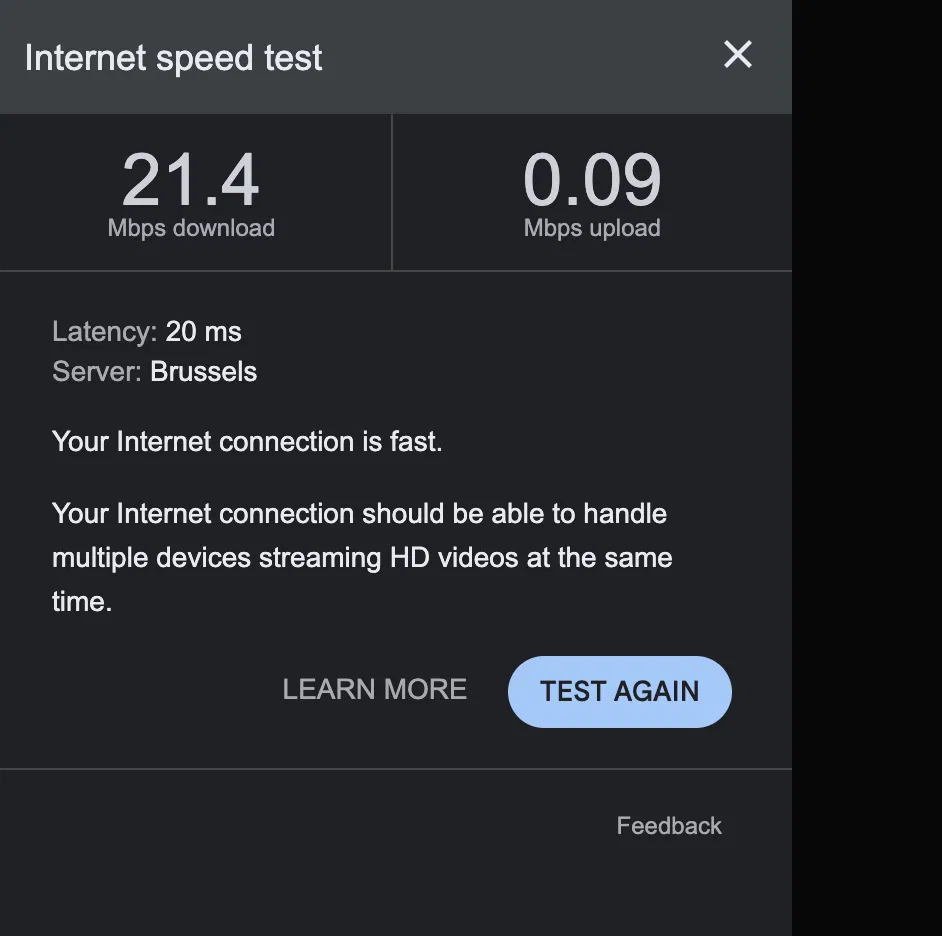
- Phone: download also dropped to about 1 Mbps, upload basically not working
- Tablet: 12.2 Mbps down, 17.3 Mbps up, normal
- MacBook: unchanged, 28.7 down, 0.26 up
Multiple devices affected, inconsistently, at different times. That pattern usually means an unstable upstream line, not a single misbehaving device.
Calling Telenet
I called my ISP, explained the fluctuating speeds across multiple devices, and the router settings I'd already ruled out.
They asked me to test the network stack wired. Same issue.
They could not debug tings remotely.
They scheduled a technician visit.
While waiting, I checked the rest of the router settings.
Bandwidth control: disabled. No cap set anywhere.
Firewall and VPN passthrough: standard settings, nothing blocking traffic.
DHCP settings: normal range, normal lease time.
Wireless advanced settings: transmit power on High, no unusual thresholds.
Wireless settings: channel on Auto, nothing unusual enabled.
All clean, upload still dead.
The IP address detour
I swapped my router to a Starlink modem instead of the Telenet line, same router, same LAN, different upstream connection.
Then I looked at IP addresses to check for a conflict. My router's internal subnet is 192.168.2.x. The Telenet modem itself hands out 192.168.0.x to anything plugged directly into it.
The Telenet app showed the modem's own LAN and WAN configuration, including its public IP address.
I read about "Modem Bridging," a setting that gives the router the public IP directly instead of double NAT.
I checked the firewall and port forwarding settings too.
None of it mattered. Two separate private subnets on two sides of a router don't conflict. My double NAT setup (Telenet modem routing, then my router routing again behind it) was redundant but not the cause. Starlink's WAN handoff used its own private range too, and that connection worked fine.
I checked the router's own DHCP range.
And its NAT control page. Also fine.
The router that wasn't fine either
Then this: "No it's my router for sure. Switched to Starlink again. Now the upload is slow there too."
The router that had worked fine on Starlink earlier was now slow on Starlink too. That ruled out the Telenet line. If the same router is slow regardless of ISP, the problem is local, not upstream.
Possible causes at this point: a NAT table issue from Docker or background connections, a network loop from bad cabling, or a device flooding the LAN.
In Activity Monitor again, some background processes showed up named only as version numbers: 2.1.252, 2.1.237, 2.1.257, 2.1.231.
Cool nugget:
Claude code processes have the version as process name. I only learned this after looking at these processes in detail. (started thinking maybe it wasd claude doing something to my upload).
These looked like they could be from a corporate security or VPN agent routing traffic somewhere slow.
killed VPN and anything that might impact network.
A few more symptoms
The download was low, but usable all the time, this is really strange.
Some other details came up along the way:
- Claude (via the web browser) kept working fine the whole time.
- ChatGPT's web app, which uses more upload bandwidth, stopped working.
- Claude code constantly gave me the following error:
⏺ API Error: Connection dropped (ECONNRESET) - European Commission web forms with file uploads failed silently. No error, no loading indicator, nothing happened.
- A second, newer MacBook also showed slow upload, but only on a cellular hotspot, not on the home network at all.
That last point suggested a shared corporate VPN routing all traffic through a slow proxy. But it turned out only the new M5 MacBook was affected. Not the older one, not any shared infrastructure. One machine, slow on every network it touched.
Thank god I tried with a old device
The fix
I rebooted the Mac.
Upload speed went back to normal immediately.
Everything else I checked that day, router security, Wi-Fi signal, background processes, ISP line quality, IP subnetting, NAT configuration, network loops, VPN agents, was fine. The actual problem was something in macOS's network stack that got stuck, on one specific laptop, and no amount of router troubleshooting was going to fix it.

The reason
I have no clue.
Apart from this I'd be happy not rebooting for another 6 months...
Last reboot?
Using the command "last reboot shutdown | head -20" I see
reboot time Wed Sep 2 23:06
shutdown time Wed Sep 2 23:05
reboot time Wed Mar 25 01:37
shutdown time Wed Mar 25 01:37
reboot time Mon Mar 16 19:10
shutdown time Mon Mar 16 19:10
My Mac ran continuously for about 161 days, roughly 5 months and 8 days, without a single restart, before I rebooted it yesterday.
Why the blogpost?
Well I was searching for similar issues and my AI was also searching for solutions. I wish AI or a blogpost had suggested a reboot (at all).
Takeaway
If you're on a M5 Macbook air, and you're experiencing funny upload speeds and you did not reboot it for 5 months, consider a reboot :D
I ruled out an entire home network, called my ISP, scheduled a technician, and went through router settings menus I didn't know existed. The actual fix was a restart.